Restore QBO Journal Entries: A Guide for Accountants

Restore QBO Journal Entries: A Guide for Accountants
QuickBooks Online does not provide an automatic undelete for individual deleted journal entries. Once a transaction is removed, it is gone from the active data set. Your fastest recovery path depends on what you have available right now.
Your immediate options, in order of speed:
- Audit Log recreation (always available): Go to Gear > Tools > Audit Log, filter for Deleted/Voided Transactions, find the entry, and manually recreate it using the details in the History column.
- QBO Advanced full company restore (if applicable): If you have QuickBooks Online Advanced and a backup that predates the deletion, you can roll the entire company file back to that point. This overwrites all data entered after the backup.
- Transaction-level third-party restore (fastest for single entries): If you use a record-level backup service like Akikalabs, you can restore the specific journal entry without touching the rest of the file.
The Audit Log is not a restore button. It is a forensic record. It shows you what the deleted entry contained so you can rebuild it by hand. That distinction matters practically: recreating an entry does not automatically restore its reconciled status, and you will need to re-mark it manually in the account register.
Pro Tip: Before you do anything else, export or screenshot the Audit Log entry for the deleted transaction. Once you start recreating records, the log view can shift and you may lose your place in a long filtered list.
Table of Contents
- How to restore QBO journal entries using the Audit Log
- What QBO can and can’t back up or restore
- How to use QBO Advanced Back Up & Restore safely
- Why third-party backups exist and how Akikalabs fits
- Best practices to prevent accidental journal deletions
- Limitations, risks, and when to call for help
- Key Takeaways
- Why transaction-level backups are the right default for accounting teams
- Akikalabs handles record-level QBO restores so you don’t have to rebuild by hand
- Useful sources and further reading
How to restore QBO journal entries using the Audit Log
This is the method available to every QBO subscriber, regardless of plan. It requires admin access.
Step 1: Access the Audit Log
- Click the Gear icon (top right).
- Select Tools, then Audit Log.
- You will land on a paginated log of all account activity.
Step 2: Filter for the deleted entry
- Click Filter at the top of the log.
- Set Events to Deleted/Voided Transactions.
- Set a Date range that covers when the deletion likely occurred.
- Optionally filter by User if you know who made the change.
- Click Apply.
Step 3: Locate and capture the entry details
- Scroll through the results to find the journal entry (look for “Journal Entry” in the Name column).
- Click View under the History column.
- The Event column will display every field: date, accounts, debit/credit amounts, memo, and class/location if used.
- Screenshot or copy all fields before proceeding. For multi-line entries, use your browser’s Ctrl+F to search by account name or amount.
Step 4: Recreate the journal entry
- Go to + New > Journal Entry.
- Enter the original date exactly as shown in the Audit Log.
- Recreate each line: account, debit or credit amount, description, and any class or location tags.
- Attach any supporting documents you have on file.
- Save the entry.
Step 5: Restore the reconciled status
Recreating the entry does not automatically mark it as reconciled. To re-mark it as reconciled:
- Go to Transactions > Chart of Accounts.
- Find the relevant account and click Account History.
- Locate the recreated entry and expand it.
- Click the checkbox in the tick column until it shows R.
- Click Save.
Post-recreation verification checklist:
- Run a Transaction Detail by Account report for the affected period and compare balances to your prior PDF snapshot.
- Pull a Trial Balance for the affected month and confirm debits equal credits.
- Save a PDF of the corrected reports for your audit trail.
Pro Tip: If the deleted entry was part of a reconciled period, run a reconciliation discrepancy report after recreation to confirm the beginning balance is intact. A single off-by-one error in a recreated line will surface immediately.

What QBO can and can’t back up or restore
Understanding the scope of native QBO backup is the fastest way to calibrate your expectations before a crisis.
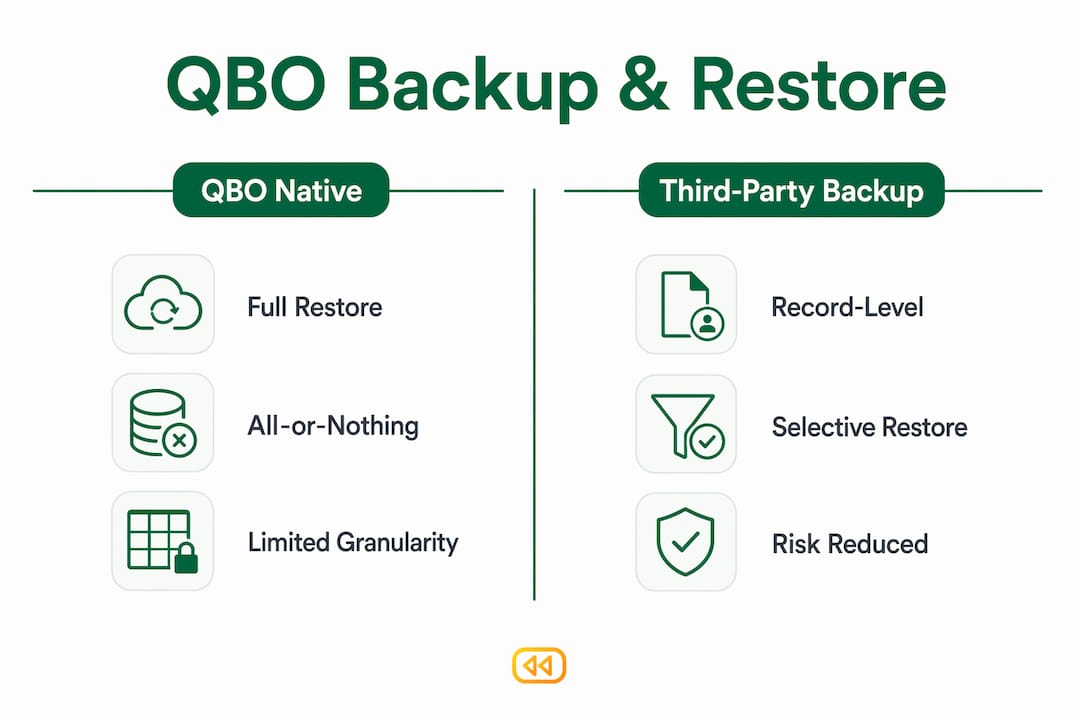
QuickBooks Online does not let you undelete individual transactions directly. The Audit Log is the only place where deleted transaction details survive, and it is a read-only record, not a restore mechanism. This is a deliberate platform design, not a bug.
What QBO’s native tools cover:
- Audit Log: full history of all creates, edits, voids, and deletions (read-only; admin access required)
- QBO Advanced Back Up & Restore: full company-level rollback to a prior point in time
- Manual exports: CSV/Excel exports of transaction lists, reports, and chart of accounts
What QBO’s native tools do not cover:
- Single-transaction or record-level restore (no “undelete” button for individual journal entries)
- Attachment recovery for deleted transactions
- Granular restore of specific record types (e.g., restore only journal entries from a date range without touching everything else)
- Long-retention point-in-time snapshots beyond what QBO Advanced stores
The contrast with other software categories is instructive. Desktop applications like Microsoft’s journaling tools can sometimes recover deleted records from OS-level recycle bins or local file backups. QBO is a cloud-hosted multi-tenant platform; there is no local file to roll back from, which is precisely why the Audit Log recovery path exists as the primary manual workaround.
QBO Advanced changes the equation, but only partially. Its Back Up & Restore tool can roll the entire company file back to a prior snapshot, which will recover deleted journal entries if they existed at that backup point. The trade-off is total: everything entered after the backup is overwritten, including new customers, vendor bills, payroll runs, and bank feeds.
For accounting firms managing multiple clients, this all-or-nothing behavior is often unacceptable for a single missing entry. That gap is exactly what third-party backup services are designed to fill.
How to use QBO Advanced Back Up & Restore safely
If you have QuickBooks Online Advanced and the deletion affected a large number of transactions, a full company restore may be the right call. Treat it as a last resort, not a first response.

Pre-restore checklist
Complete every item before you initiate the restore:
- Export current Profit & Loss, Balance Sheet, Accounts Receivable Aging, and Accounts Payable Aging reports to PDF.
- Note all connected third-party apps (payroll integrations, payment processors, e-commerce connectors) so you can reconnect them after the restore.
- Take a fresh manual snapshot or export of the current file state, so you have a record of what existed immediately before the restore.
- Notify all users to log out and hold off on data entry during the restore window.
- Schedule the restore during a low-activity period (early morning or weekend).
Step-by-step restore process
- Go to Settings (Gear icon) > Back up company.
- Locate the backup that predates the deletion. QBO Advanced stores multiple restore points; select the one closest to but before the deletion event.
- Click Restore next to the chosen backup.
- Follow Intuit’s confirmation prompts, which will warn you that the restore overwrites your current data.
- Confirm and allow the process to complete. Restore time varies with company file size and the number of connected apps.
What the restore overwrites
- All customers, vendors, and employees added after the backup point are removed.
- The chart of accounts reverts to its state at the backup date.
- User access changes made after the backup are undone.
- Bank feed data imported after the backup must be re-pulled.
Safer alternative: Restore the backup into a sandbox test company first. This lets you extract the specific journal entry details without touching the live file. One CPA firm reported cutting reconstruction time from roughly a week to about 90 minutes by using this approach when a daily backup contained the missing transactions.
After any restore, re-pull bank feeds for affected periods and re-reconcile. Document every change you make for your audit trail.
Why third-party backups exist and how Akikalabs fits
Native QBO backup covers the all-or-nothing scenario. It does not cover the scenario most accountants actually face: a single deleted journal entry, a handful of miscategorized transactions, or a client who accidentally wiped a month of data during a chart-of-accounts cleanup.
Third-party backup services address this by capturing the data at the record level, not just as a monolithic company snapshot. When evaluating any third-party backup for QBO, these are the dimensions that matter:
- Restore granularity: Can you restore a single transaction, or only the full company?
- Retention and point-in-time snapshots: How far back can you go? Daily snapshots for 90 days is a common baseline; audit-exposed clients often need a year or more.
- Security and encryption: Is data encrypted in transit and at rest? Who holds the keys?
- Export capability: Can you export a snapshot as structured data for audits or reconciliation comparisons?
- Support and recovery SLAs: How quickly can the vendor help you execute a restore under pressure?
- Pricing model: Is it per connected company per month, or per user?
| Feature | QBO Advanced (native) | Generic transaction-level backup | Akikalabs |
|---|---|---|---|
| Restore granularity | Full company only | Single records / transactions | Single records, invoices, journal entries |
| Retention / snapshots | Limited restore points | Varies by vendor | Scheduled and on-demand point-in-time snapshots |
| Security | Intuit platform security | Varies | Encrypted storage, audit trails, compliance-ready controls |
| Export for audits | Manual report exports | Varies | Snapshot export for audits and reconciliation |
| Support SLAs | Standard Intuit support | Varies | Priority support upgrade available |
| Pricing model | Included with Advanced plan | Per company / per month | Per connected QBO company per month; free trial available |
Akikalabs is built specifically for accountants and bookkeepers who need record-level recovery without the risk of overwriting a live company file. Its dependency-aware recovery handles the relational complexity of QBO data, so restoring a single journal entry does not create orphaned references in the accounting graph. The free trial lets you connect a QBO company and run a test restore before committing.
Many firms layer three backup strategies: monthly local CSV exports, periodic full-report PDF archives, and a paid third-party daily backup that supports record-level restore and long retention. Akikalabs fits the third layer.
Best practices to prevent accidental journal deletions
Recovery is always more expensive than prevention. These habits reduce both the frequency of accidental deletions and the time spent on recovery when they do happen.
Permission controls:
- Restrict delete rights to senior staff or the firm’s lead accountant. Standard bookkeepers should have edit access, not delete access.
- Require a second reviewer or accountant approval before any journal entry is deleted, especially in closed periods.
- Schedule bulk reclassifications or chart-of-accounts cleanups during supervised windows with a designated approver present.
Operational habits:
- Use Reverse or Void instead of Delete whenever possible. Intuit’s own guidance recommends reversing or voiding over deleting because it preserves the audit trail while deletion removes the record entirely.
- Add descriptive memos to every journal entry at creation time. A memo is the fastest way to identify a transaction in the Audit Log later.
- Export PDFs of critical reports (Trial Balance, General Ledger, P&L) before any major change to the chart of accounts or before bulk imports.
Backup rhythm:
- Take a manual snapshot before any bulk reclassification or chart-of-accounts cleanup. This single habit dramatically reduces reconstruction time when mistakes occur.
- Maintain scheduled daily backups via a third-party service for any client with high transaction volume or audit exposure. For small-business backup best practices, a multi-layer approach covering local exports, periodic archives, and automated cloud backups provides the strongest safety net.
- Keep quarterly full-report exports (P&L, Balance Sheet, Trial Balance, General Ledger) for audit-ready comparison.
Pro Tip: Use a sandbox or test company to validate large bulk changes before applying them to the live file. QBO Advanced includes a test company option; third-party tools like Akikalabs also support sandbox restores so you can verify recovery without any risk to production data.
Limitations, risks, and when to call for help
Not every deletion scenario is solvable by following a guide. Knowing when to escalate saves time and prevents compounding errors.
Risks of a full company restore:
- All data entered after the backup point is permanently overwritten, including new customers, vendors, payroll runs, and bank feed imports.
- Reconciliations completed after the backup date are undone and must be redone.
- Connected app integrations (payroll, payments, e-commerce) may break and require manual reconnection.
- If the backup predates a tax filing period, re-entering post-backup transactions may create discrepancies in filed returns.
When to escalate to QuickBooks Support or a CPA:
- Large-scale accidental deletions affecting dozens or hundreds of transactions across multiple periods.
- No backup exists for the affected time window and the Audit Log entries are too numerous to recreate manually.
- The deletion has broken reconciliations in a period that has already been used for tax filings.
- You are unsure whether recreating entries will create duplicate tax liability or misstate financial statements.
Practical escalation steps:
- Export the Audit Log filtered for the affected date range and save it as a PDF. This is your evidence file.
- Note the exact date and time window of the deletion event (visible in the Audit Log’s Date Changed column).
- If you use a third-party backup service, contact the vendor and request either a sandbox restore or a structured export of the affected records for the relevant period.
- Bring both the Audit Log export and your most recent report PDFs to any conversation with a CPA or Intuit support representative.
After any restore or manual reimport, re-pull bank feeds for all affected periods and re-reconcile from the earliest affected month forward. Document every corrective action with a dated note in the memo field of recreated transactions.
This article is general information for educational purposes. For situations that may affect tax filings or audited financials, confirm the appropriate recovery approach with a qualified CPA or Intuit support.
Key Takeaways
The fastest path to recovering a deleted QBO journal entry is the Audit Log; a full company restore via QBO Advanced is available but overwrites all post-backup data, making transaction-level backup tools the most practical option for single-entry recovery.
| Point | Details |
|---|---|
| Audit Log is your first step | Filter for Deleted/Voided Transactions, capture all fields, and manually recreate the entry with the original date and accounts. |
| QBO Advanced restores overwrite everything | A full company rollback recovers deleted entries but removes all data entered after the backup point. |
| Reconciled status needs manual repair | After recreating an entry, toggle the tick column in the account register to “R” or reconciliations will remain out of sync. |
| Prevention beats recovery | Restrict delete permissions, use Void/Reverse instead of Delete, and take snapshots before bulk changes. |
| Akikalabs for record-level recovery | Akikalabs provides single-entry restores, encrypted point-in-time snapshots, and audit-ready exports without overwriting the live file. |
Why transaction-level backups are the right default for accounting teams
The conventional wisdom in accounting circles is that QBO Advanced’s built-in backup is “good enough.” That framing misses the actual failure mode. The problem is almost never “our entire company file is gone.” It is almost always “one journal entry was deleted, or a handful of transactions were miscategorized during a cleanup, and now a reconciliation is broken.”
A full company restore is a sledgehammer for a problem that needs a scalpel. The overwrite risk alone, specifically losing new customers, recent payroll, and bank feed data, means most firms will hesitate to use it for anything short of a catastrophic data loss. That hesitation is rational. But it leaves a gap: the Audit Log is the only fallback, and manual recreation is slow, error-prone, and does not scale when more than a few entries are affected.
Transaction-level backup changes the risk calculus. When a single journal entry can be restored in minutes without touching the rest of the file, the decision to act is easy. Audit trails stay intact, reconciliations stay clean, and the accountant does not spend a day reconstructing what a 30-second mistake destroyed. The organizational benefit compounds over time: clients get faster SLA commitments, firms spend less time on error recovery, and every restore produces a documented, exportable record that holds up under audit scrutiny.
The firms that have adopted this approach tend to report the same thing: the value is not in the dramatic full-restore scenario. It is in the quiet, routine recoveries that never become crises because the right tool was already in place.
Akikalabs handles record-level QBO restores so you don’t have to rebuild by hand
When a deleted journal entry means hours of manual reconstruction, the real cost is not the entry itself. It is the reconciliation repair, the client call, and the audit trail gap that follows. Akikalabs is built to eliminate that cost entirely.

With Akikalabs, every connected QuickBooks Online company gets scheduled and on-demand point-in-time snapshots, record-level recovery for individual transactions and journal entries, encrypted storage with compliance-ready audit trails, and exportable snapshot data for reconciliation comparisons or audit requests. You can restore a single journal entry without overwriting anything else in the live file. The free trial lets you connect a QBO company and run a test restore against real data before you commit to a subscription.
For accountants who need to demonstrate data security to clients, the security and compliance details are publicly documented, including encryption standards, access controls, and audit log architecture.
Start your free trial at akikalabs.com and run a sandbox restore on your first connected company today.
Useful sources and further reading
Official Intuit documentation:
- Use the Audit Log to re-enter deleted transactions in QuickBooks Online — the primary Intuit support article for manual recovery via the Audit Log.
- Back up and restore your QuickBooks Online Advanced company — step-by-step instructions for the QBO Advanced full company restore, including overwrite warnings.
- Reverse or delete a journal entry in QuickBooks Online — Intuit’s guidance on when to reverse or void instead of delete.
- Is there a way to restore a deleted journal entry? — QuickBooks Community thread confirming no built-in undelete and covering the manual reconciliation repair steps.
Akikalabs resources:
- QuickBooks Online Backup: Why Restore Is the Hard Part — explains the constraints of native QBO restore and the practical case for record-level backup.
- How Akikalabs Works — technical overview of encrypted backups, record-level restore, and sandbox restore options.
- Why third-party backups matter for accountants — comparison of native QBO backup versus third-party record-level services.
- Backup retention policy: a guide for accountants — guidance on choosing retention windows for clients with different audit exposures.
Small-business backup best practices:
- Business Data Backup Best Practices for Small Business — IT-side guidance on multi-layer backup architecture relevant to firms coordinating accounting and infrastructure backups.
Recommended
- Akika Labs Blog | QuickBooks Online Backup & Restore
- QuickBooks Online Backup: Why Restore Is the Hard Part | Akika Labs
- Security at Akika | Akika Labs
- What Akika Backs Up for QuickBooks Online | Akika Labs
Akika Labs provides secure backup and restore for QuickBooks Online.
Read what Akika backs up, see how the restore workflow works, or review the security model. Akika Labs is an independent product and is not affiliated with Intuit or QuickBooks.